
out4 · help center · scanning
Scanning tickets at the door.
Out4's scanner runs in our iOS + Android app. Anyone with the scanner role on an event can scan tickets at the door — no extra hardware, no separate device, no per-ticket fee.
Updated August 4, 2026
How scanning works
One app. One scan. Zero per-ticket fees.
The scanner lives inside the same out4 app your attendees use. Any account with a scanner role on an event becomes a scanner — switch events as you cover multiple doors.
Scan result
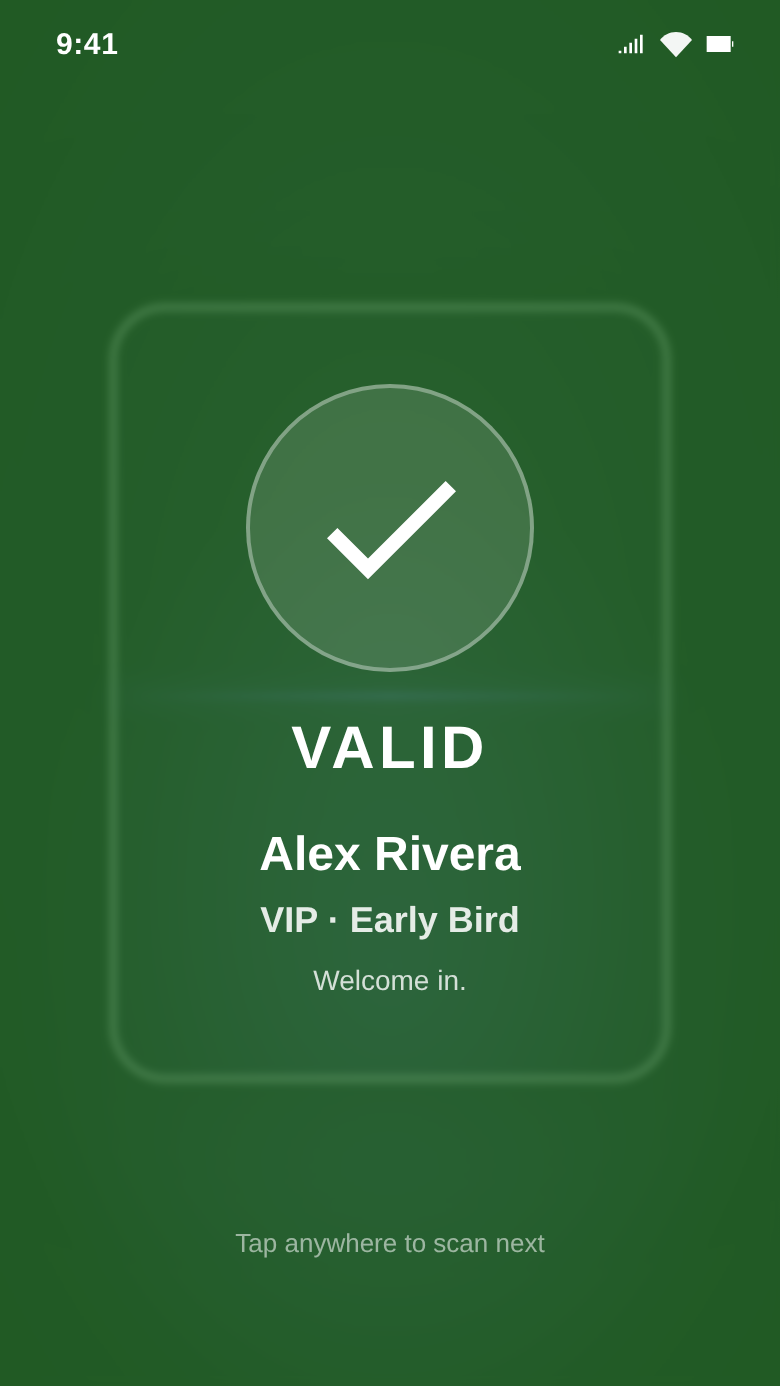
The same camera that takes your selfies scans QR codes. No dongles, no Bluetooth gun.
Every result is logged with timestamp, scanner, and device — fully auditable.
Multiple doors? While the phones have signal they all see the same live state — a ticket admitted at Door A is yellow at Door B.
Venue with no signal? Download the door list before you get there and the door keeps running. That download is not optional — see “No signal + the door mesh”.
Setup
Get the app, sign in, get the role.
Three steps, once per scanner. After that you're scanning until the role is removed.
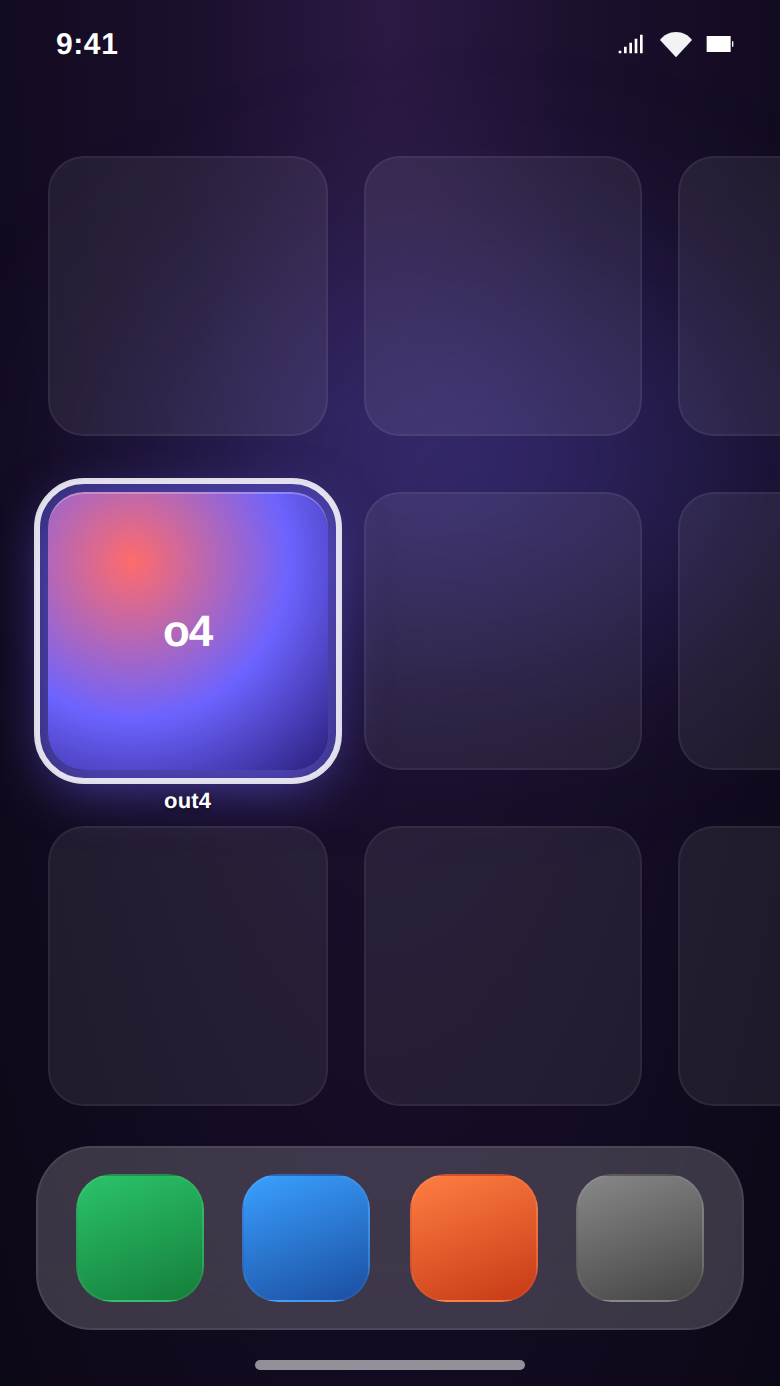
Install the app
iOS: Live on the App Store — search “out4” or tap here.
Android: Currently in Google Play review. Internal-track APK available on request.
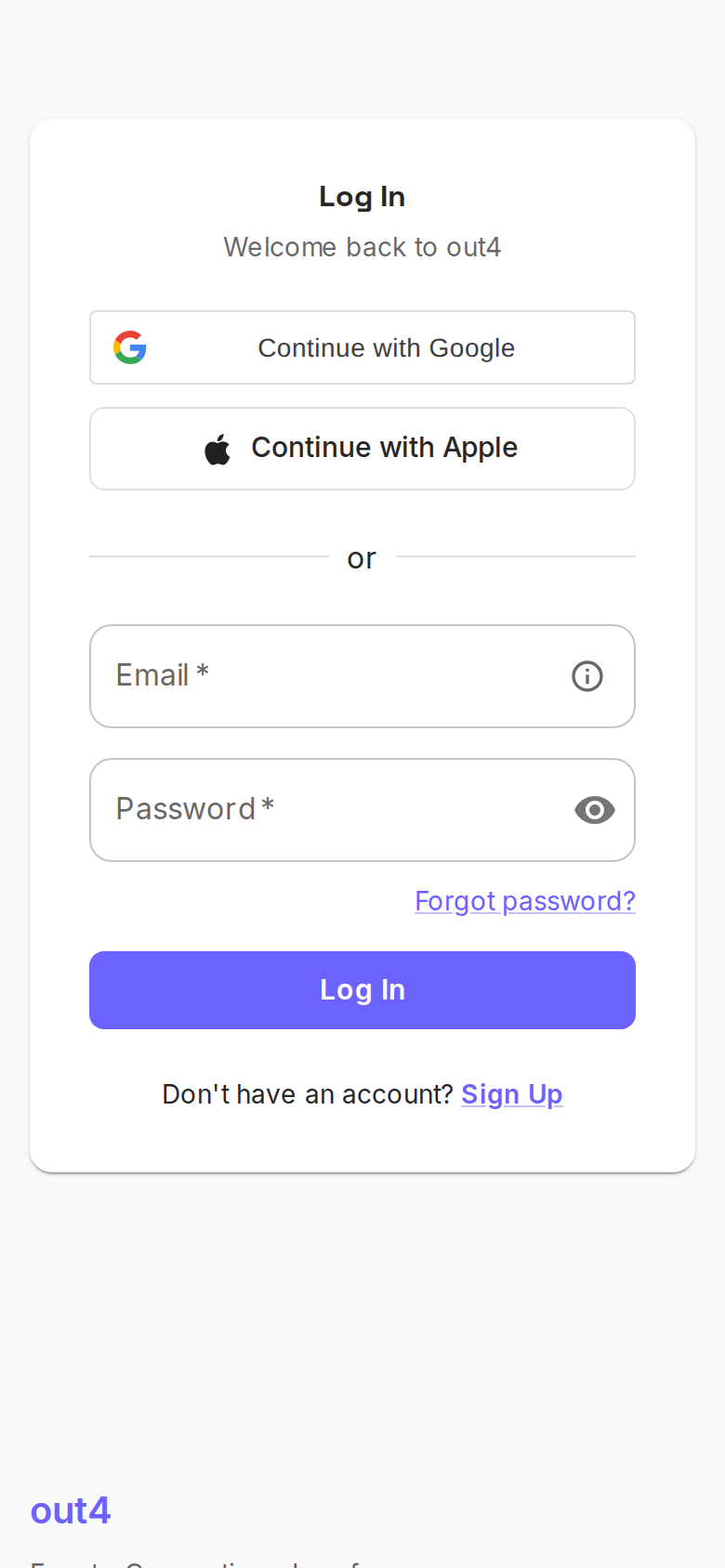
Sign in to your out4 account
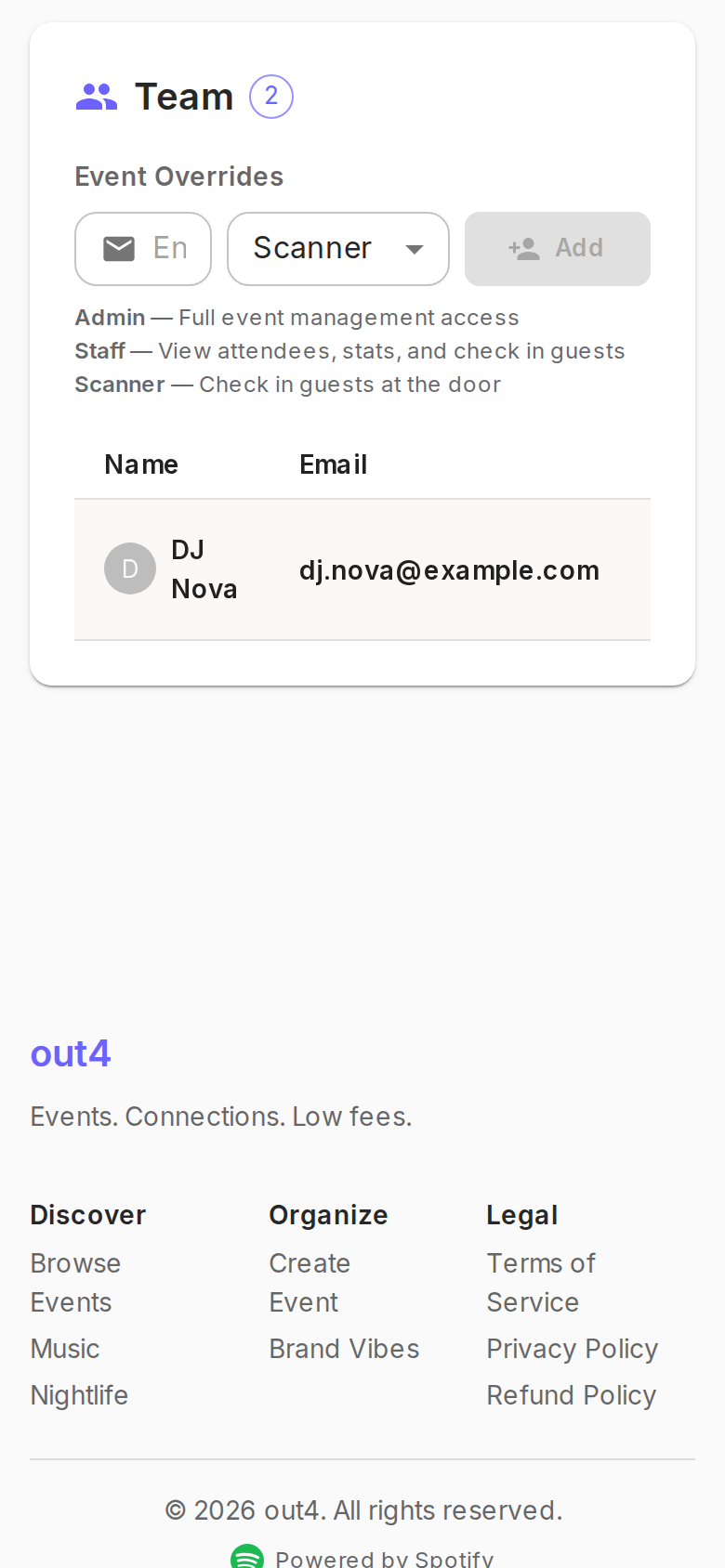
Get the scanner role
/events/<slug>/edit → Roles → + Add scanner, then types your handle and picks a role. Three options:- Door scanner — scan tickets and see the result. No attendee list.
- Runner — scan + search the attendee list by name for the "I lost my QR" cases.
- Promoter — everything above plus sales analytics, manual check-in, and refunds.
Day-of
What you actually do at the door.
Six steps. The first one happens before you get to the venue, and it is the one that decides whether the door survives a dead signal.
Warning
- 1
Before you leave signal: open the app, tap Scan, pick your event, tap Download door list. Every phone, every time.
- 2
At the door, open the out4 app.
- 3
Tap the Scan tab in the bottom nav.
- 4
Pick your event — only events where you have a scanner role appear.
- 5
Aim at the QR. Autofocus handles alignment — you don't need to tap to focus.
- 6
Result appears within ~300ms.
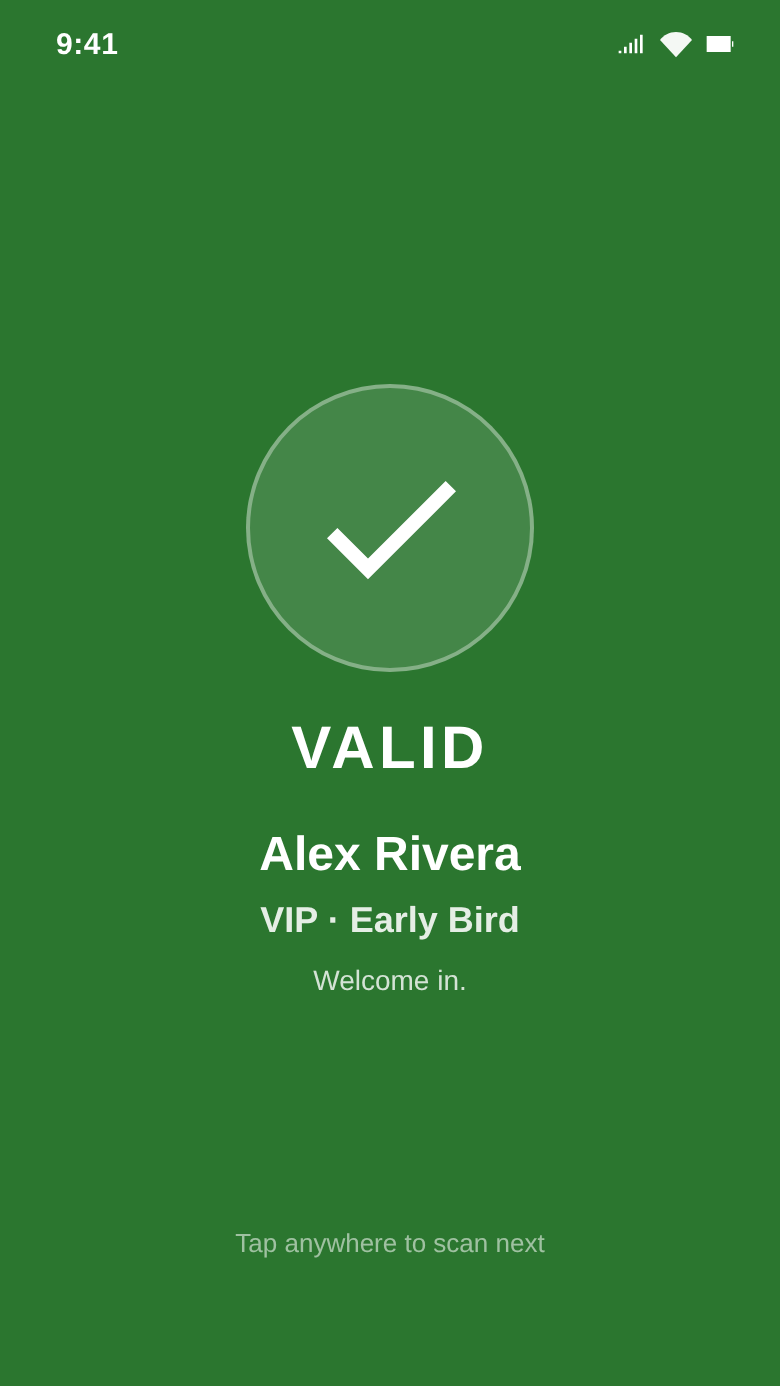
Valid
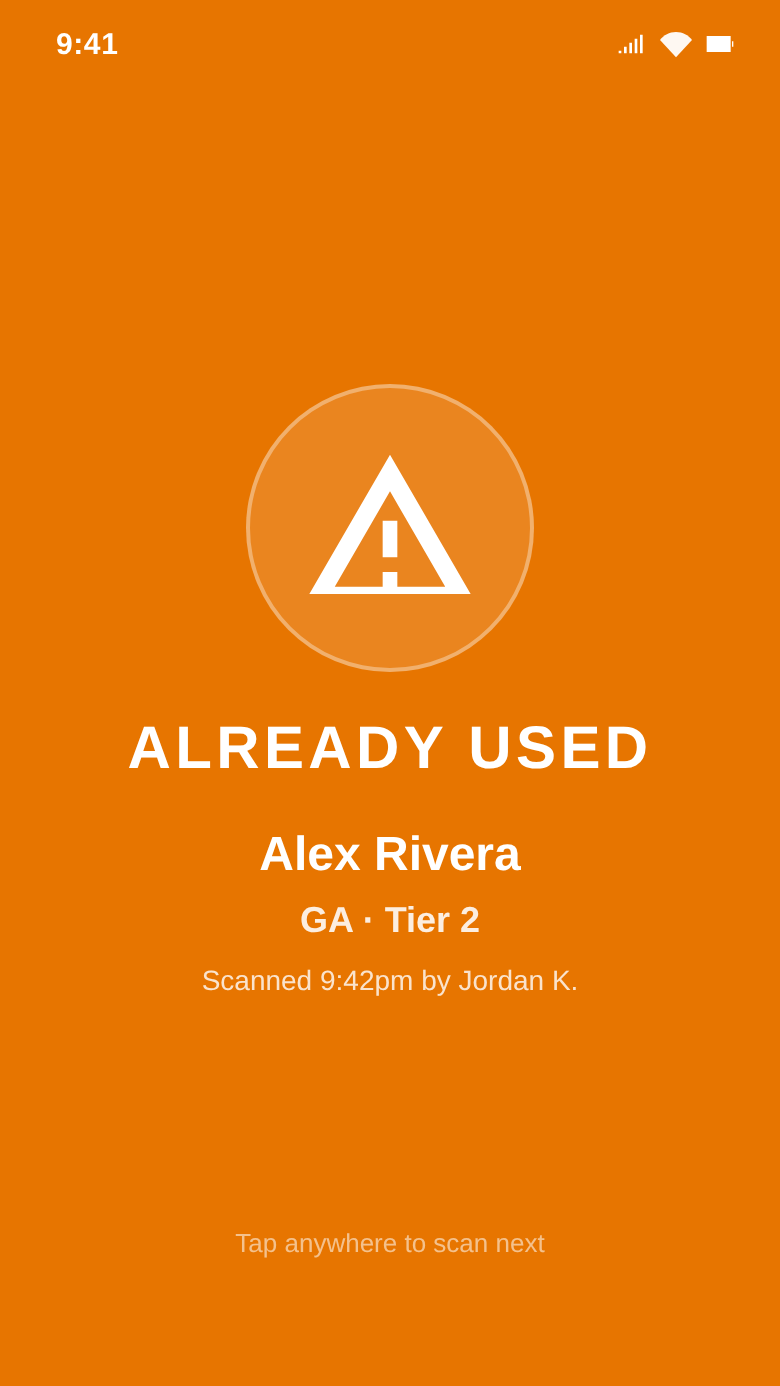
Already scanned
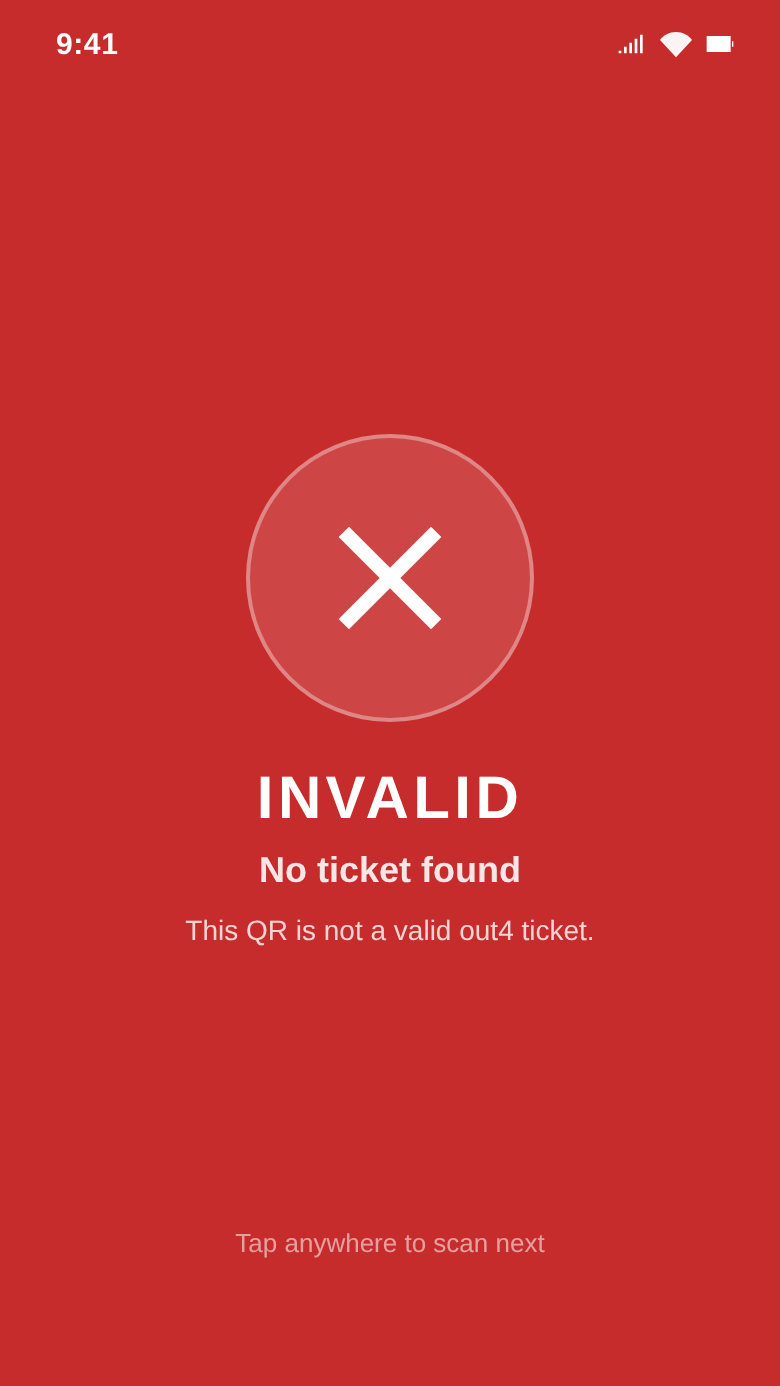
Invalid
Green check.Valid first-time scan. Door opens.
Yellow.Already scanned. Shows when and by whom (e.g. "Scanned 8:42 PM by @luda"). Judgment call — usually admit on re-entry, escalate if anything seems off.
Red.Invalid. Tap-to-expand for the reason. Don't admit until the runner or promoter has cleared it.
No signal
When the venue eats your signal.
Basements, metal rooms, 2,000 phones on one tower. The door keeps running — but only if you did one thing beforehand.
Warning
Scan tab → your event → Download door list. It takes seconds and it is the whole ballgame.
The badge at the top of the scanner
One badge, four states. It tells you exactly how strong the door's no-duplicates promise is right now. Tap it on the phone for the same sentence plus who else is on this door and when they were last heard from. It turns green the moment things improve, and waits about eight seconds of solid failure before it downgrades — so a Wi-Fi blip doesn't make it flicker while you're working a queue.
| Badge on the phone | When you see it | What it actually promises |
|---|---|---|
| LIVE | The phone can reach out4. | Verified with the server. No duplicates. |
| MESH · n devices | No internet, but the paired phones are on one Wi-Fi or hotspot. | Coordinated with the door host. No duplicates among connected scanners. |
| NEARBY | No internet and no shared network — the phones are only reaching each other over Bluetooth. | Sharing check-ins with nearby scanners. Duplicates are still possible for up to a minute. |
| OFFLINE · this device only | No internet and no other scanner in reach. | This phone only. It will not re-admit anyone it has already scanned. |
The phone can reach out4.
Verified with the server. No duplicates.
No internet, but the paired phones are on one Wi-Fi or hotspot.
Coordinated with the door host. No duplicates among connected scanners.
No internet and no shared network — the phones are only reaching each other over Bluetooth.
Sharing check-ins with nearby scanners. Duplicates are still possible for up to a minute.
No internet and no other scanner in reach.
This phone only. It will not re-admit anyone it has already scanned.
Pairing a second phone to the door
- On the phone that will host: Scan → your event → the door icon → Door setup, and turn on Host this door. A QR appears.
- On every other phone: open the normal scanner and point it at that QR. There is no separate Join button — the scanner recognises a door code and pairs instead of scanning a ticket. It says “Paired to the door”.
No venue Wi-Fi? A hotspot is a real door network.
One catch worth knowing before you rely on it: an iPhone's hotspot is carrier-controlled and can refuse to turn on where there is no cell signal at all — exactly the basement you needed it in. Android hotspots are generally more willing. If you have both on the crew, make the Android the hotspot.
The door list can cross the mesh — but only over Wi-Fi.
Over Bluetooth only, door lists deliberately cannot cross — they carry ticket key material and are far too big for the radio. Check-ins still cross; lists do not. Door setup says so plainly when that is your situation. Which is why the rule stays: download before you leave signal.
What the banner across the top means
- Offline mode — door list in use. Normal. You are scanning against the snapshot; it names how many check-ins are waiting to upload.
- No signal, no door list. The bad one. Nothing can be verified until signal returns or a list is downloaded.
- Door host unreachable — solo mode. The host phone stopped answering. Check-ins still work here, but two doors can now admit the same ticket. Tap Take over right on the banner.
- Queue full — scanning paused. Rare and serious: the phone is holding 5,000 unsent check-ins and will not take another. Get signal before scanning again.
What an offline door cannot know
This is irreducible: it is the price of a door that works with no signal, and no amount of engineering removes it. Refresh the list whenever the phone has signal — that is the only lever there is. Promoters running high-refund events should know this before choosing to work a venue offline.
After the doors close: the upload report
What comes back is the Upload report, and it tells two very different stories on purpose:
- Let in twice. One ticket, two people through two doors. A real overcount. Each row names the ticket and both scans.
- Turned away by mistake. A scan your door refused where the ticket was actually fine. Nobody checks a dashboard for this one — it was a person having a bad night at your door, so it is put in front of you.
When two offline scans collide, the earlier one is kept as the check-in and the later one is recorded as superseded — an online scan always outranks an offline one, whatever the phones' clocks claim. Nothing gets “resolved” by that: both people already walked in. The report exists so you know it happened.
Bar deals work offline too
It always tries the server first and only falls back when the network is genuinely unreachable — a refusal from out4 is an answer, not an outage. Deals are single-use, so an offline burn is exactly a ticket burn: the same coupon will not pour a second drink on that phone, and the merchant gets the full record when it syncs.
The web scanner is online-only, by design.
If there is any chance of bad signal at your venue, work the door from the iOS or Android app.
Heads up
Reference
All result states, in one place.
Bookmark this section — it's the troubleshooting cheat sheet for everything the scanner can show you.
| Badge | State | What it means | What to do |
|---|---|---|---|
✓ | Valid first-time scan | First time this ticket has been scanned at this event. | Admit. |
! | Already scanned | Scanned before. Result shows the time and the scanner who admitted them (e.g. "Scanned 8:42 PM by @luda"). | Judgment call. Usually admit if they look like the same group (re-entry, group split). Escalate if anything seems off. |
✕ | Wrong event | The ticket is valid, but for a different event. | Direct the attendee to the right door. The wrong-event response includes the correct event title. |
✕ | Refunded or cancelled | The ticket was refunded or the order was voided. The sale is no longer active. | Don't admit. Direct them to the promoter / box office. |
✕ | Expired event | The event already happened. Tickets don't admit after the event end time. | Don't admit. |
✕ | Garbage QR | The code isn't an out4 ticket — wrong format, random QR, advertising poster, etc. | Don't admit. |
✕ | Secure-entry only | This event requires the rotating in-app QR. A PDF or screenshot won't scan. | Ask the attendee to open the out4 app and show their rotating QR. |
✓ | Checked in — offline | Valid, decided against the door list on the phone rather than by the server. Only appears when the phone has no signal. | Admit. The check-in uploads by itself when signal returns. |
✕ | Not on the door list | Offline only. The ticket is not in the snapshot this phone downloaded — usually because it was bought after the download. | Get signal and scan again, or have a runner or promoter check them in by name. Do not treat it as a fake ticket. |
✕ | Can't verify — no door list | No signal AND no door list on this phone (or the list expired, or it does not match how this event checks people in). Nothing was decided about the ticket. | Nobody was checked in. Get signal, download or refresh the door list on Door setup, then scan again. |
Valid first-time scan
First time this ticket has been scanned at this event.
Admit.
Already scanned
Scanned before. Result shows the time and the scanner who admitted them (e.g. "Scanned 8:42 PM by @luda").
Judgment call. Usually admit if they look like the same group (re-entry, group split). Escalate if anything seems off.
Wrong event
The ticket is valid, but for a different event.
Direct the attendee to the right door. The wrong-event response includes the correct event title.
Refunded or cancelled
The ticket was refunded or the order was voided. The sale is no longer active.
Don't admit. Direct them to the promoter / box office.
Expired event
The event already happened. Tickets don't admit after the event end time.
Don't admit.
Garbage QR
The code isn't an out4 ticket — wrong format, random QR, advertising poster, etc.
Don't admit.
Secure-entry only
This event requires the rotating in-app QR. A PDF or screenshot won't scan.
Ask the attendee to open the out4 app and show their rotating QR.
Checked in — offline
Valid, decided against the door list on the phone rather than by the server. Only appears when the phone has no signal.
Admit. The check-in uploads by itself when signal returns.
Not on the door list
Offline only. The ticket is not in the snapshot this phone downloaded — usually because it was bought after the download.
Get signal and scan again, or have a runner or promoter check them in by name. Do not treat it as a fake ticket.
Can't verify — no door list
No signal AND no door list on this phone (or the list expired, or it does not match how this event checks people in). Nothing was decided about the ticket.
Nobody was checked in. Get signal, download or refresh the door list on Door setup, then scan again.
Modes + options
Standard, secure entry, offline, and manual.
Four ways tickets get into your event. The scanner handles all of them — you mostly just pick which mode at event-creation time.
Standard tickets (default)
Secure entry mode
Multi-device scanning
That coordination is the first thing a dead signal takes away. Pair the phones into a door mesh and they keep checking with each other instead — see No signal + the door mesh.
Offline behavior
Without a door list there is no offline mode — the phone refuses every ticket. The download, what the connection badge promises, how to pair a second phone, and what the sync report tells you afterwards all live in No signal + the door mesh.
Manual check-in (fallback)
Roles
Who can do what.
Three role levels. Owners add roles per event, so a runner at Show A isn't automatically a runner at Show B.
| Action | Door scanner | Runner | Promoter |
|---|---|---|---|
| Scan QR | ✓ | ✓ | ✓ |
| See scan result detail | ✓ | ✓ | ✓ |
| Search attendees by name | ✓ | ✓ | |
| Manual check-in | ✓ | ✓ | |
| See sales analytics | ✓ | ||
| Cancel event | ✓ | ||
| Add / remove other scanners | ✓ |
Troubleshooting
The things that go wrong at the door.
Sorted by frequency. Tap a question to open the fix.
Android: Settings → Apps → out4 → Permissions → Camera → Allow. Relaunch the app.
/events/<slug>/edit → Roles.cash-paid so the door scan shows green when they come in, and the books balance against the bank deposit.- The list is old. Anything sold after the download is not in it. Get one bar of signal and tap Refresh door list on Door setup — on a mesh over Wi-Fi, that one refresh reaches every paired phone.
- You downloaded the list for a different event. Door setup names the event at the top. Check it matches the door you are working.
Fix: Settings → Privacy & Security → Local Network → out4 → On, then force-quit and reopen out4 and scan the pairing code again.
Fix: pair that phone to another one instead of hosting the door from it. Everything it scans still crosses over Wi-Fi and still uploads to out4 — nothing is lost.
Also check they are on the same network. Two phones on different Wi-Fi networks — one on the venue's, one on a hotspot — are not on a mesh together.
refunded). The first scan was still valid; the later scan is rejecting because the sale was voided after entry. Direct the attendee to the box office or promoter. The event audit log has the full timeline.Live-event etiquette
The soft skills that keep a door moving.
Most of door work is people work. These are the lessons we keep re-learning from real events.
Rule
Don't argue with attendees.
Rule
Don't manually toggle the database.
Tip
Refunds at the door go through Stripe.
Tip
Save the scanner phone battery.
More help
Still stuck?
The team is small and we answer fast.
In the app, tap the ? button in the top-right of any scanner screen — it deep-links back to this page.
Email support@out4.events for anything that's not urgent.
Mid-event and need a human right now? DM @out4.events on Instagram — Chris is the on-call.
Need more help?
Email support@out4.events for anything that isn't urgent. We're a small team — most replies happen the same day.
Mid-event and need a human right now? DM @out4.events on Instagram — Chris is the on-call.